
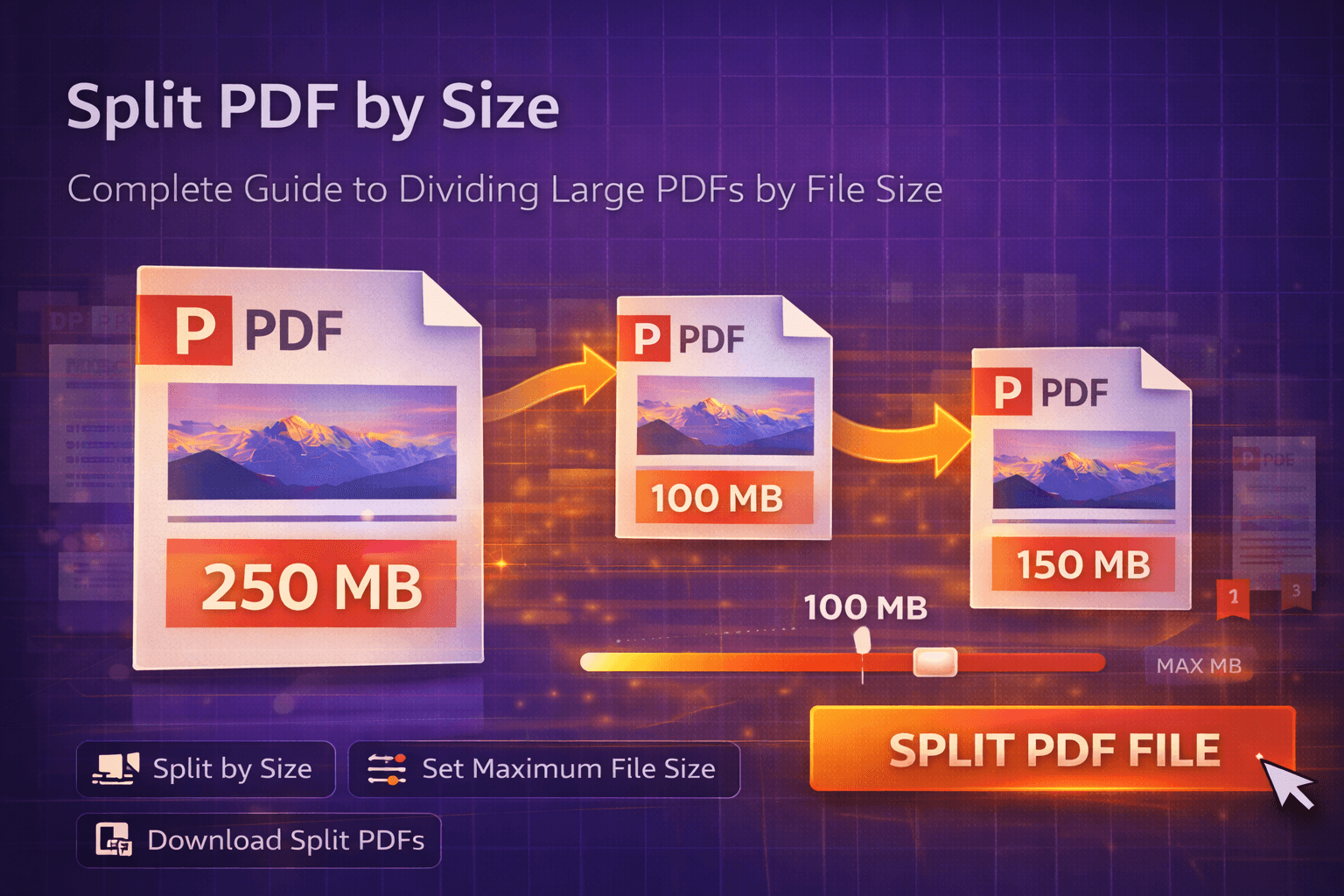
You've got a 45 MB PDF file that needs to be emailed, but your email service has a 25 MB attachment limit. Or maybe you're trying to upload a large document to a system that only accepts files under 10 MB. These are the moments when you realize that splitting PDFs by size isn't just convenient—it's essential.
Splitting PDF files by file size is one of those features that seems simple until you actually need it. Unlike splitting by page ranges where you know exactly which pages you want, splitting by size requires the tool to intelligently divide your document while maintaining quality and ensuring each piece stays within your specified limit. This comprehensive guide will walk you through everything you need to know about splitting PDFs by size, from understanding when and why to use this method to mastering the process with our free online tool.
The Problem: When File Size Becomes a Barrier
We live in a world full of file size restrictions. Email services cap attachments at 25 MB. Cloud storage platforms have upload limits. Content management systems restrict file sizes. Even file sharing services have their own constraints. When you're working with large PDF documents—whether they're comprehensive reports, scanned archives, or multi-page presentations—these limitations can bring your workflow to a grinding halt.
Here's what makes large PDF files problematic:
- Email attachment limits: Most email providers restrict attachments to 25 MB, with some corporate systems limiting to 10 MB or less
- Upload restrictions: Many web forms and content management systems have strict file size limits that prevent large document uploads
- Transfer speed issues: Large files take longer to upload, download, and share, especially on slower internet connections
- Storage constraints: Some platforms limit individual file sizes even when you have plenty of total storage space
- Mobile device limitations: Mobile apps often have stricter size limits than desktop applications
- Bandwidth concerns: Sending or receiving very large files can consume significant bandwidth, especially problematic for users on limited data plans
The traditional workaround—manually splitting by guessing page counts—is tedious and error-prone. You might split a 100-page PDF into 20-page chunks, only to discover that some chunks are still too large because certain pages contain high-resolution images or complex graphics. Or you might create unnecessarily small files, resulting in dozens of separate documents that are difficult to manage.
That's where splitting by file size comes in. Instead of guessing how many pages equal a certain file size, you tell the tool exactly what size limit you need, and it intelligently divides your PDF accordingly. This ensures every split file stays within your limit while maximizing the content in each file.
Why This Problem Matters More Than You Think
File size restrictions affect professionals across every industry. What seems like a minor inconvenience can actually create significant workflow bottlenecks and productivity losses. Consider these real-world scenarios where splitting PDFs by size becomes critical:
- Legal professionals sending case files, evidence documents, or discovery materials that exceed email limits
- Healthcare workers sharing patient records, medical imaging files, or comprehensive health histories that need to stay within HIPAA-compliant file sharing limits
- Real estate agents distributing property documentation packages that are too large for standard email attachments
- Architects and engineers sharing detailed blueprints, technical drawings, or project specifications that exceed platform upload limits
- Accountants and financial advisors sending comprehensive financial reports, tax documents, or audit files that need to meet client portal size restrictions
- Researchers and academics submitting large research papers, datasets, or comprehensive literature reviews to journals with strict file size requirements
- HR departments distributing employee handbooks, policy documents, or training materials that need to be accessible via email or company portals
- Content creators sharing large portfolios, design files, or media documentation that exceed social media or portfolio platform limits
The consequences of not having a proper solution can be severe:
- Delayed communication when emails bounce back due to size limits
- Frustrated clients or colleagues who can't access important documents
- Time wasted trying workarounds like compressing files (which can reduce quality) or using multiple file transfer services
- Security risks when resorting to unverified third-party file sharing services
- Professional credibility issues when you can't deliver documents in a timely manner
- Compliance problems when file size prevents proper document distribution in regulated industries
Understanding how to split PDFs by size isn't just about convenience—it's about maintaining professional workflows, meeting client expectations, and ensuring your documents can be shared and accessed when they're needed most.
The Solution: Intelligent PDF Splitting by File Size
Modern PDF splitting tools solve the file size problem with intelligent algorithms that analyze your document and divide it optimally. Instead of requiring you to manually calculate page counts or guess where to split, these tools automatically determine the best split points based on your specified file size limit.
Here's how intelligent size-based splitting works:
- Automatic size calculation: The tool analyzes each page's size contribution to determine where to split
- Page boundary preservation: Splits occur at page boundaries, never in the middle of a page, ensuring document integrity
- Optimal grouping: Pages are grouped intelligently to maximize content in each file while staying under your limit
- Quality preservation: No compression or quality reduction—pages are extracted as-is from the original document
- Flexible size limits: You can specify any size limit from 1 MB to 50 MB or more, depending on your needs
- Instant processing: All splitting happens in your browser, so your files never leave your device
The best part? You don't need to understand the technical details. You simply specify your desired maximum file size—say, 10 MB for email attachments—and the tool handles everything else. It creates as many files as needed, each under your specified limit, with clear naming so you can easily identify and manage them.
Our PDF splitter tool includes this size-based splitting feature, making it easy to divide large documents into email-friendly or upload-compatible chunks. It's designed to be fast, secure, and straightforward—everything you need without the complexity you don't.
Step-by-Step Guide: How to Split PDF Files by Size
Ready to split your PDF by size? Follow these detailed steps to divide large PDF files into smaller, size-optimized documents. The process is straightforward, but we'll walk through each step to ensure you get the best results.
Step 1: Access the PDF Splitter Tool
Navigate to our PDF splitter page. You'll see a clean, intuitive interface with options for different splitting methods. No account creation, login, or payment required—you can start splitting immediately.
The interface is designed to be self-explanatory, with clear labels and helpful tooltips. You'll see options for splitting by page ranges, by bookmarks, and—most importantly for our purposes—by file size.
Step 2: Upload Your PDF File
Click the upload area or drag and drop your PDF file directly onto the page. The tool supports:
- Drag and drop functionality for quick file upload
- Files up to 25-50 MB (for optimal performance)
- Any PDF file, regardless of page count or complexity
- Password-protected PDFs (you'll need to unlock them first using our PDF editing tool)
Once uploaded, you'll see a preview showing your PDF's total page count and file size. This information helps you understand what you're working with and plan your size-based split accordingly.
Pro tip: If your file is very large (over 50 MB), consider using our PDF compression tool first to reduce the size, then split the compressed file. This can make the splitting process faster and more efficient.
Step 3: Select "Split by Size" Option
Look for the splitting method options and select "Split by Size" or "Split by File Size." This tells the tool to divide your PDF based on file size limits rather than page counts or bookmarks.
You might see this option labeled differently depending on the tool, but it's typically clearly marked. Some tools show it as a tab, button, or dropdown menu option. The key is finding the size-based splitting feature rather than page-based or bookmark-based splitting.
Step 4: Specify Your Maximum File Size
This is the crucial step. Enter your desired maximum file size for each split file. The tool will create as many files as needed, with each file staying under your specified limit.
Common size limits and their use cases:
- 5 MB: Very conservative limit, ideal for strict email systems or mobile file sharing
- 10 MB: Standard email attachment size, works with most email providers
- 15 MB: Comfortable email size that stays well under most 25 MB limits
- 20 MB: Maximum safe size for email, just under typical 25 MB limits
- 25 MB: Maximum for most email services, use if you need the largest possible files
- 50 MB or more: For cloud storage, file sharing services, or systems with higher limits
How to choose the right size:
- Check your email provider's attachment limit (most are 25 MB, but some corporate systems are lower)
- Consider your recipient's email system—some have stricter limits than others
- Think about upload platforms—many web forms limit files to 10 MB or less
- Balance file count vs. file size—smaller limits create more files but ensure compatibility
- Account for email overhead—a 25 MB limit might actually mean 24 MB is safer to account for email encoding
Most tools let you specify size in MB (megabytes). Simply enter the number—for example, "10" for 10 MB or "5" for 5 MB. Some advanced tools also support KB (kilobytes) for very precise control.
Step 5: Review Split Preview (If Available)
Some tools provide a preview showing how many files will be created and their approximate sizes. This preview helps you:
- Verify that your size limit is appropriate
- See how many files you'll end up with
- Confirm that all files will stay under your limit
- Adjust your size limit if needed before processing
If the preview shows you'll get 20+ files, you might want to increase your size limit slightly to reduce the number of files. Conversely, if you're getting just 2-3 files and need more granular control, you could decrease the limit.
Step 6: Configure File Naming (Optional)
Many tools let you customize how split files are named. Common naming patterns include:
- Original name + part number (e.g., "document_part1.pdf", "document_part2.pdf")
- Original name + size indicator (e.g., "document_5mb_part1.pdf")
- Sequential numbering (e.g., "split_001.pdf", "split_002.pdf")
- Custom prefix + numbers (you specify the prefix)
Choose a naming pattern that makes sense for your workflow. If you're emailing files, descriptive names help recipients understand what they're receiving. If you're archiving, sequential numbers might be sufficient.
Step 7: Click Split and Wait for Processing
Once everything looks good, click the "Split PDF" or "Split by Size" button. The tool will:
- Analyze your PDF's structure and page sizes
- Calculate optimal split points based on your size limit
- Extract pages and group them into separate files
- Ensure each file stays under your specified size limit
- Generate all split PDF files
Processing time depends on several factors:
- Total size of your original PDF
- Number of pages (more pages = more processing)
- Complexity of content (images and graphics take longer to process)
- Number of files being created
- Your device's processing power
For typical splits (50-100 pages into 3-5 files), processing usually takes 10-30 seconds. Very large PDFs (200+ pages) might take 1-2 minutes. You'll see a progress indicator during processing, so you know the tool is working.
Step 8: Download Your Split PDFs
When processing completes, your split PDFs are ready. You'll typically see a list of all created files with their sizes and names. You can:
- Download individual files one by one
- Download all files as a ZIP archive (most convenient for multiple files)
- Preview each file before downloading to verify content
- Check file sizes to confirm they're all under your limit
Important: Since processing happens in your browser, your files never leave your device. Once you close the browser tab, all temporary data is cleared. Make sure to download your split PDFs before closing the page.
Pro tip: If you're emailing multiple files, downloading as a ZIP archive is convenient, but remember that recipients will need to extract the ZIP. Alternatively, you can email files individually, which is often easier for recipients.
That's it! You've successfully split your PDF by size. The entire process typically takes less than three minutes from start to finish, and you now have perfectly sized files ready for email, upload, or sharing.
Benefits of Splitting PDFs by Size
Why choose size-based splitting over other methods? Here are the key advantages that make this approach ideal for many use cases:
1. Guaranteed Compatibility with Size Limits
The biggest advantage is certainty. When you split by size, you know with 100% confidence that every file will stay under your specified limit. There's no guessing, no trial and error, no bounced emails or failed uploads. You set the limit, and the tool ensures compliance.
2. Optimal File Sizing
Size-based splitting maximizes content in each file while respecting your limit. Unlike manual page-based splitting where you might create unnecessarily small files, the tool groups pages intelligently to get as close to your limit as possible without exceeding it.
For example, if you have a 50 MB PDF and set a 10 MB limit, you'll get 5 files of approximately 10 MB each. If you split by pages manually, you might end up with 8 files of varying sizes, some much smaller than necessary.
3. Handles Variable Page Sizes Automatically
PDFs aren't uniform—some pages are text-heavy (small file size), while others contain high-resolution images or complex graphics (large file size). When you split by page count, you might create files with wildly different sizes.
Size-based splitting accounts for this automatically. A file might contain 15 text pages or 3 image-heavy pages—the tool adjusts to keep file sizes consistent, which is exactly what you need for email or upload compatibility.
4. Perfect for Email Attachments
Email attachment limits are the most common reason people need to split PDFs by size. With size-based splitting, you can confidently split any document to meet email requirements. Set your limit to 10 MB or 20 MB (depending on your email provider), and every file will be ready to send without worrying about bounce-backs or delivery failures.
5. No Quality Loss
Unlike compression (which reduces quality to reduce size), splitting by size simply divides your document. Each split file maintains the exact same quality as the original pages. There's no re-compression, no quality degradation, no loss of detail.
This is crucial for professional documents, legal files, medical records, or any content where quality preservation is important. You get smaller files without sacrificing quality.
6. Flexible Size Limits
Different platforms have different requirements. Email might need 10 MB files, while a content management system might allow 50 MB. With size-based splitting, you can easily adjust your limit to match any requirement. One tool handles all scenarios.
7. Time Savings
Manual splitting methods require you to:
- Estimate how many pages equal your desired file size
- Test split files to verify they're under limits
- Adjust and re-split if files are too large
- Repeat the process multiple times to get it right
Size-based splitting eliminates all of this. You set the limit once, and the tool handles everything automatically. What might take 30 minutes of trial and error becomes a 2-minute automated process.
8. Professional Results
Consistently sized files look more professional than a mix of large and small files. When you're sending documents to clients, colleagues, or stakeholders, uniform file sizes demonstrate attention to detail and technical competence. Size-based splitting ensures every file meets your standards.
Comparison: Size-Based Splitting vs. Other Methods
How does splitting by size compare to other PDF splitting methods? Let's examine the differences to help you choose the right approach for your needs.
Size-Based Splitting vs. Page-Based Splitting
Page-Based Splitting:
- ✅ You control exactly which pages go into each file
- ✅ Good when you know the document structure
- ✅ Useful for splitting by chapters or sections
- ❌ File sizes can vary dramatically (some files might be 2 MB, others 15 MB)
- ❌ Requires manual calculation to meet size limits
- ❌ Trial and error to get files under email/upload limits
Size-Based Splitting:
- ✅ Guaranteed file size compliance
- ✅ Optimal file sizing (maximizes content per file)
- ✅ Handles variable page sizes automatically
- ✅ Perfect for email and upload requirements
- ❌ Less control over which specific pages go together
- ❌ May split in the middle of sections if page sizes vary
Verdict: Use page-based splitting when you need specific page groupings (like chapters). Use size-based splitting when you need to meet file size requirements for email, uploads, or sharing platforms.
Size-Based Splitting vs. Compression
Compression (Reducing File Size):
- ✅ Keeps document as a single file
- ✅ Can significantly reduce file size
- ✅ Good for storage optimization
- ❌ May reduce quality (especially images)
- ❌ Might not get files small enough for strict limits
- ❌ Can make text less readable if over-compressed
Size-Based Splitting:
- ✅ No quality loss whatsoever
- ✅ Guaranteed to meet size limits
- ✅ Preserves original quality perfectly
- ❌ Creates multiple files instead of one
- ❌ Recipients need to manage multiple files
Verdict: Use compression when you want to keep one file and can accept some quality reduction. Use size-based splitting when quality is critical and you need guaranteed size compliance. You can also combine both—compress first, then split if needed.
Size-Based Splitting vs. Bookmark-Based Splitting
Bookmark-Based Splitting:
- ✅ Splits at logical document sections
- ✅ Respects document structure
- ✅ Good for structured documents (reports, books)
- ❌ Requires PDF to have bookmarks
- ❌ File sizes can vary significantly
- ❌ May not meet size requirements
Size-Based Splitting:
- ✅ Works with any PDF (no bookmarks needed)
- ✅ Guaranteed size compliance
- ✅ Consistent file sizes
- ❌ May split in the middle of sections
- ❌ Less respect for document structure
Verdict: Use bookmark-based splitting when your PDF has bookmarks and you want to preserve document structure. Use size-based splitting when you need to meet specific size requirements regardless of structure.
When to Use Each Method
Here's a quick decision guide:
- Use size-based splitting when: You need to email files, upload to size-restricted platforms, ensure consistent file sizes, or meet specific size requirements
- Use page-based splitting when: You know exactly which pages you need, want to extract specific sections, or need precise control over content grouping
- Use bookmark-based splitting when: Your PDF has bookmarks and you want to preserve document structure while splitting
- Use compression when: You want to reduce file size while keeping one file and can accept some quality reduction
Many professionals use size-based splitting as their default method because it solves the most common problem—file size restrictions—while still producing usable, well-organized files.
Frequently Asked Questions About Splitting PDFs by Size
How do I split a PDF by file size?
You can split a PDF by file size using our online PDF splitter tool. Simply upload your PDF file, select the "Split by Size" option, specify your desired maximum file size (e.g., 5 MB, 10 MB), and click split. The tool automatically divides your PDF into multiple files, each under your specified size limit. No account creation or payment required.
Why would I need to split a PDF by size?
Splitting PDFs by size is essential when you need to email large documents (most email services have 25 MB limits), upload files to systems with size restrictions, or optimize file sizes for faster sharing. It ensures each split file stays within your specified size limit while maintaining document quality. This is especially important for professional communication, client deliverables, and compliance with platform requirements.
What is the best file size to split a PDF into?
The best file size depends on your needs. For email attachments, 5-10 MB is ideal since most email services limit attachments to 25 MB, and staying well under the limit ensures reliable delivery. For cloud storage or file sharing, 10-20 MB works well. For very large documents, splitting into 5 MB chunks ensures maximum compatibility across different platforms. Consider your recipient's system and your specific use case when choosing a size limit.
Does splitting a PDF by size reduce quality?
No, splitting a PDF by size does not reduce quality. The tool divides your PDF at page boundaries, extracting pages without re-compressing or degrading content. Each split file maintains the same quality as the original pages. The tool intelligently groups pages to stay within your size limit while preserving all original content, formatting, and image quality.
Can I split a PDF by size for free?
Yes, you can split PDFs by size completely free using our online tool. No account creation, payment, or software installation required. Simply upload your PDF, set your size limit, and download the split files. All processing happens in your browser for maximum privacy and security. Your files never leave your device.
How many files will I get when splitting by size?
The number of files depends on your original PDF size and your specified size limit. For example, a 50 MB PDF split at 10 MB will create approximately 5 files. A 25 MB PDF split at 5 MB will create about 5 files. The tool automatically calculates how many files are needed and splits at page boundaries to maintain document integrity. You'll see a preview before splitting showing the expected number of files.
Is it safe to split PDFs by size online?
Yes, when using a privacy-first PDF splitter that processes files locally in your browser, your documents never leave your device. All splitting happens client-side using JavaScript, ensuring your sensitive documents remain secure and private. Unlike cloud-based tools that upload files to servers, client-side processing means your PDFs are processed entirely on your computer. Always look for tools that explicitly state they process files locally rather than uploading them.
What is the maximum file size I can split?
Most online PDF splitters support files up to 25-50 MB for optimal performance. Very large files (100+ MB) may cause browser performance issues or timeouts. For best results, keep files under 25 MB. If you have larger files, consider using our PDF compression tool first to reduce size before splitting. This two-step approach (compress then split) works well for very large documents.
Can I split password-protected PDFs by size?
Most online PDF splitters cannot process password-protected PDFs because they can't access the content without the password. You'll need to remove password protection first using a PDF editing tool or the software that created the protection, then split the unlocked files. Some desktop PDF software can handle password-protected files if you provide the password during processing.
Will the split files have the same page sizes and formatting?
Yes, all split files maintain the exact same page sizes, orientations, formatting, fonts, images, and layout as the original PDF. The tool extracts pages without modification, so each split file looks identical to the corresponding pages in the original document. The only difference is that content is divided across multiple files instead of one.
Can I choose a custom file size limit?
Yes, most tools let you specify any file size limit you need. Common options include 1 MB, 5 MB, 10 MB, 15 MB, 20 MB, 25 MB, and 50 MB, but many tools also support custom values. Simply enter your desired size in MB (or KB for very precise control). The tool will create as many files as needed to stay under your limit.
What happens if a single page is larger than my size limit?
If a single page exceeds your size limit (which is rare but possible with very high-resolution images), the tool will still include that page in a file, but that file will exceed your limit. Most tools will warn you about this situation. In such cases, you may need to use our PDF compression tool first to reduce the overall file size, then split the compressed PDF. Alternatively, you could use our PDF editing tool to optimize individual pages before splitting.
Can I split PDFs by size on mobile devices?
Yes, many online PDF splitter tools work on mobile browsers, though the experience may vary. Mobile devices have less processing power and memory than desktop computers, so very large splits might be slower or fail. For best results on mobile, stick to smaller files (under 10 MB) and fewer total pages (under 50). The interface may also be optimized differently for touch screens, but core functionality should work.
Conclusion: Mastering PDF Size-Based Splitting
Splitting PDF files by size is one of those features that transforms a frustrating limitation into a simple, automated process. Whether you're dealing with email attachment limits, upload restrictions, or file sharing constraints, size-based splitting ensures your documents can be delivered and accessed exactly when and where they're needed.
The key advantages of size-based splitting—guaranteed size compliance, optimal file sizing, quality preservation, and time savings—make it the ideal solution for most professional workflows. Unlike manual methods that require trial and error, or compression that sacrifices quality, splitting by size gives you exactly what you need: perfectly sized files that maintain original quality.
Remember these best practices:
- Choose your size limit based on your specific needs (email limits, upload restrictions, etc.)
- Stay 1-2 MB under strict limits to account for email encoding overhead
- For very large PDFs, consider compressing first, then splitting for optimal results
- Use descriptive file naming to help recipients understand what they're receiving
- Download split files as a ZIP archive when creating many files for easier management
- Keep backups of original files until you're satisfied with the splits
- Test one file first if splitting very large documents to ensure the process works smoothly
Ready to split your PDFs by size? Try our free PDF splitter tool and experience how simple dividing large documents can be. The size-based splitting feature makes it easy to create email-ready, upload-compatible files in minutes.
And if you need to make edits to your PDFs before or after splitting, check out our PDF editing tool for adding text, images, and annotations. For very large files, our PDF compression tool can help reduce file sizes before splitting. And if you need to combine PDFs later, our PDF merger tool makes it easy to merge documents back together.
PDF management doesn't have to be complicated. With the right tools and approach, you can handle file size restrictions quickly and confidently, ensuring your documents reach their destination every time. Size-based splitting is your solution for professional, reliable document distribution.
Related Articles
How to Split PDF Files Online
Complete guide to splitting PDF files by pages, size, or bookmarks using free online tools.
How to Merge PDF Files Online
Learn how to combine multiple PDF files into one document using free online tools.
How to Edit a PDF Online
Complete guide to editing PDF files online without installing software.
Is It Safe to Edit PDFs Online?
Learn about privacy and security when editing PDF files online.