
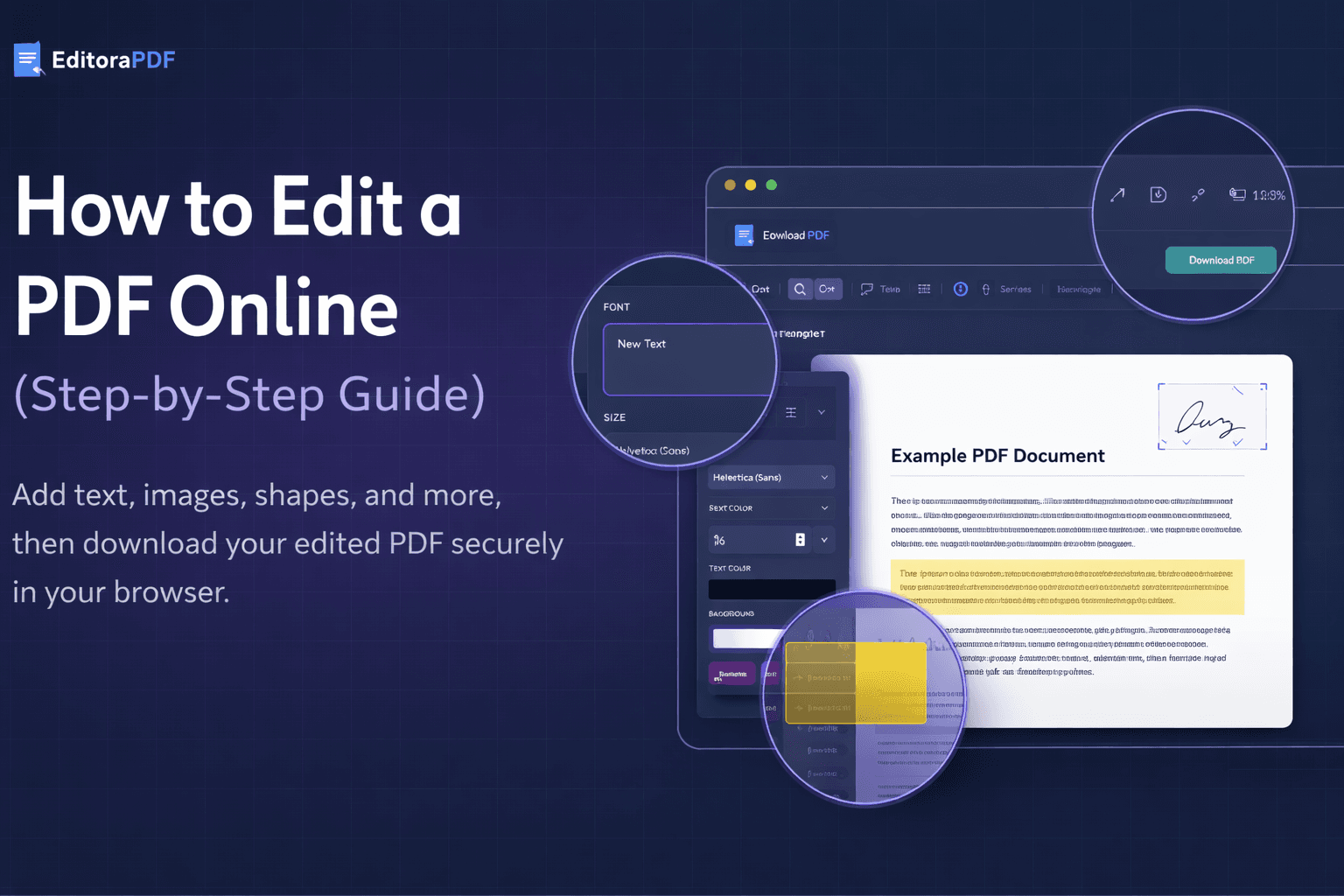
Editing a PDF used to mean installing heavy software or paying for expensive licenses. Today, many common PDF edits can be done directly in your browser — quickly, safely, and without installing anything.
This guide explains how to edit a PDF online step by step, what types of edits are supported, and what you should keep in mind before exporting your final document.
What Does "Editing a PDF Online" Actually Mean?
Online PDF editing usually refers to making visual and structural changes to an existing PDF file, such as:
- Adding new text
- Placing images (for example, logos or signatures)
- Highlighting or covering parts of a document
- Drawing shapes or annotations
- Reordering, rotating, or deleting pages
Unlike word processors, PDFs are not designed to be rewritten line by line. Most online editors work by adding editable layers on top of the original document, which is ideal for corrections, notes, and updates.
Step 1: Open Your PDF in the Editor
To start editing a PDF online:
- Click Edit PDF
- Select a PDF file from your device or drag and drop it into the editor
- The document opens directly in your browser
EditoraPDF supports PDF files up to 25 MB and works best with documents under 50 pages.
No account is required, and no installation is needed.
Step 2: Navigate Between Pages
Once your file is open, you can:
- See all pages in the left sidebar
- Click any page to jump to it
- Use navigation arrows to move page by page
If needed, pages can be reordered by dragging them into a new position, helping you restructure documents like contracts or reports.
Step 3: Add or Edit Text
To insert text into a PDF:
- Select the Text tool
- Click anywhere on the page
- Type your text
You can adjust:
- Font (for example, Helvetica)
- Font size
- Bold or italic style
- Text color
- Background color (optional)
This is useful for:
- Fixing typos
- Adding missing information
- Filling in prepared document templates
Step 4: Insert Images
You can also add images to a PDF, such as:
- Company logos
- Stamps
- Scanned signatures
- Illustrations or icons
After inserting an image, you can:
- Resize it using percentage controls
- Adjust height and width
- Rotate it by 90° increments
- Remove it if needed
Images are placed exactly where you position them on the page.
Step 5: Use Shapes and Highlights
The Shape tool allows you to draw simple elements on the page, such as:
- Rectangles
- Circles
- Lines
- Arrows
Shapes can be used to:
- Highlight important sections
- Cover sensitive information
- Add visual emphasis
You can customize:
- Color
- Opacity (for example, semi-transparent highlights)
- Outline or filled styles
Step 6: Rotate or Delete Pages
If a page is scanned sideways or included by mistake, you can:
- Rotate pages
- Delete individual pages
This is especially useful when cleaning up scanned documents or merging content from different sources.
Step 7: Export and Download Your PDF
When you're finished editing:
- Click Download PDF
- Your updated file is saved to your device
The editing process happens locally in your browser. Once you download the file, it remains on your device.
Important Limitations to Keep in Mind
Online PDF editors are powerful, but not unlimited.
Before editing, it's good to know that:
- Very complex PDFs (especially interactive forms) may have limited editing support
- Scanned PDFs are treated as images unless OCR is applied
- Online editors are best for visual edits, not full document rewriting
- Always review the final document before using it for legal, financial, or professional purposes
When Is Online PDF Editing the Right Choice?
Editing a PDF online is ideal when you need to:
- Make quick corrections
- Add notes or annotations
- Insert images or signatures
- Reorder or remove pages
- Avoid installing software on your device
For simple, everyday document updates, browser-based editing is often the fastest and most practical option.
Final Thoughts
Online PDF editing makes it easier to work with documents without unnecessary tools or setup. By understanding what edits are supported and how to apply them correctly, you can save time while keeping your documents accurate and organized.
If you're ready to make changes, you can open your file and start editing directly in your browser.
Frequently Asked Questions
Can I edit a PDF online without installing software?
Yes. Many PDF edits can be done directly in your web browser without installing any software. Online PDF editors allow you to add text, insert images, draw shapes, reorder pages, and make other visual edits without downloading additional programs.
What types of edits can I make to a PDF online?
Online PDF editors typically support visual and structural edits, such as adding text boxes, inserting images, drawing shapes or highlights, rotating pages, deleting pages, and reordering pages within a document.
Is editing a PDF online safe?
Browser-based PDF editors process files locally during editing. However, users should always review edited documents carefully and keep backups of important files, especially before using them for official or professional purposes.
Can I edit scanned PDF documents online?
Scanned PDF files are treated as images. Text inside scanned documents cannot be edited unless optical character recognition (OCR) is applied. Without OCR, you can still add text, images, or highlights on top of scanned pages.
Are there file size limits for editing PDFs online?
Most online PDF editors support files up to a certain size. For best performance, documents under 25 MB and fewer than 50 pages are recommended.
Do I need to create an account to edit a PDF online?
Many online PDF editors allow users to edit documents without creating an account. This makes it easier to make quick edits without registration or sign-up.