
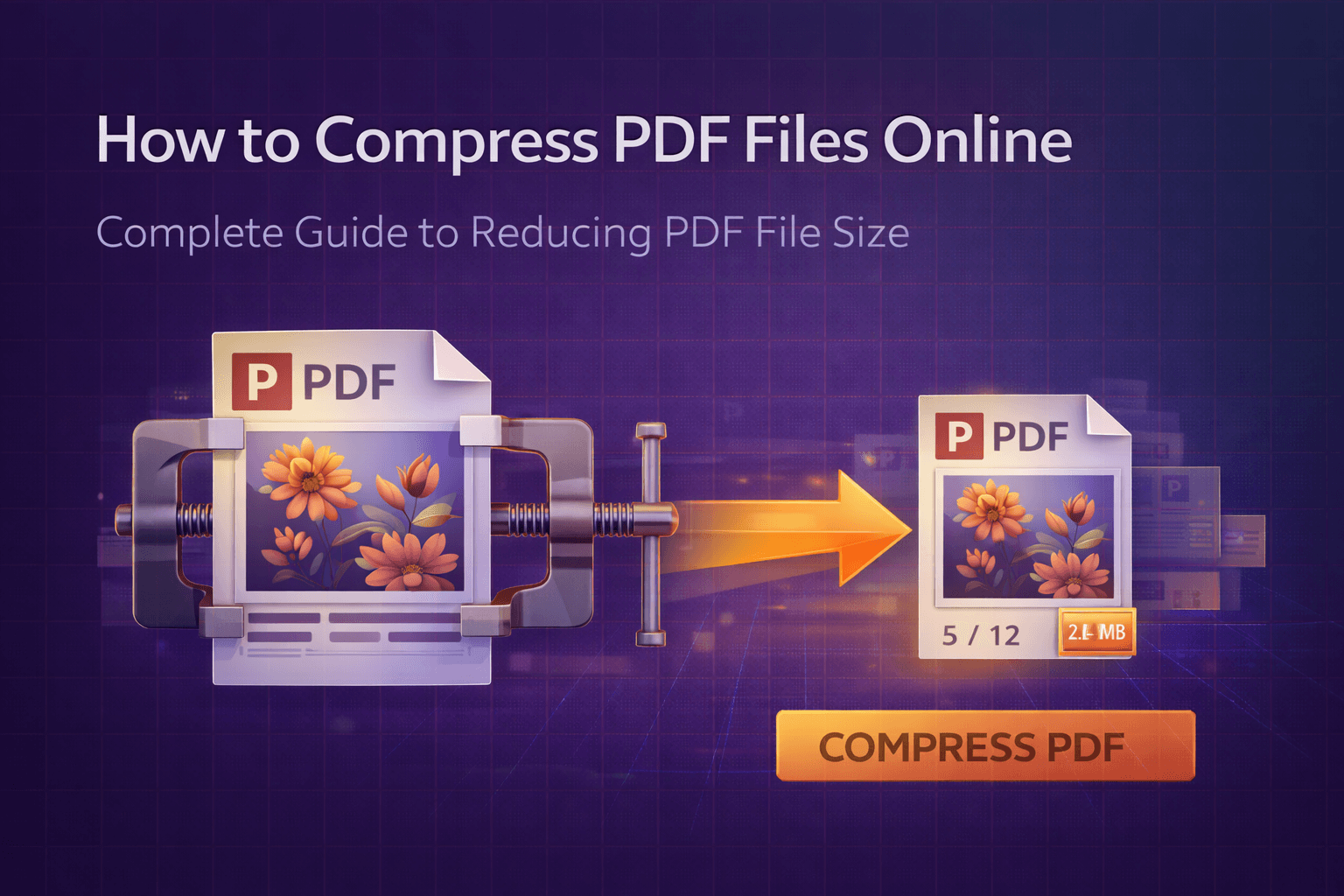
You've got a PDF file that's way too large. Maybe it's a 50 MB scanned document that won't email, or a presentation with high-resolution images that's taking forever to upload. Perhaps you're trying to share a report, but your email provider keeps rejecting it because it exceeds size limits. Whatever the reason, oversized PDF files are a daily frustration for millions of people.
The good news? You don't need expensive software or technical expertise to shrink PDF files. Modern online PDF compression tools make reducing file size as straightforward as uploading a document and clicking a button. This comprehensive guide will walk you through everything you need to know about compressing PDFs online, from understanding why files get large to choosing the right compression settings and ensuring your documents stay secure throughout the process.
The Problem: Why PDF Files Get So Large
PDF files can balloon to massive sizes for several reasons, and understanding these factors helps you choose the right compression approach. Unlike text documents where file size is mostly determined by word count, PDFs can become large due to various content types and technical factors.
Here's what makes PDF files large:
- High-resolution images: Scanned documents, photos, and graphics embedded in PDFs can consume massive amounts of space. A single high-resolution image can easily be 5-10 MB
- Uncompressed content: Some PDFs contain uncompressed images or data, meaning they haven't been optimized for file size
- Multiple embedded fonts: PDFs that include full font sets for multiple languages or styles can add significant size
- Layered content: PDFs created from design software often contain layers, annotations, and metadata that increase file size
- Vector graphics complexity: Complex vector graphics with many paths and shapes can create large files
- Embedded media: PDFs with embedded videos, audio, or interactive elements are naturally larger
- Redundant data: Some PDFs contain duplicate images, fonts, or other resources that aren't optimized
- Metadata and bookmarks: Extensive metadata, bookmarks, and document structure can add to file size
The most common culprit? Images. Whether it's scanned documents, photos, or graphics, images typically account for 80-90% of a PDF's file size. A 100-page scanned document can easily be 50-100 MB, while the same document with properly compressed images might be just 5-10 MB.
These size issues create real problems: email rejections, slow uploads, storage limitations, and frustrating user experiences. That's exactly why PDF compression has become such an essential tool for anyone who regularly works with documents.
Why This Problem Matters More Than You Think
Oversized PDF files aren't just an inconvenience—they create real barriers to productivity and communication. Consider these everyday scenarios where file size becomes a critical issue:
- Email limitations: Most email providers limit attachments to 25 MB, and many corporate systems cap at 10 MB. Large PDFs simply won't send
- Cloud storage costs: Every megabyte counts when you're paying for cloud storage. Compressing PDFs can significantly reduce storage costs
- Website uploads: Many content management systems and job application portals have strict file size limits. Oversized PDFs get rejected
- Mobile data usage: Downloading large PDFs on mobile devices consumes data quickly and costs money
- Slow loading times: Large PDFs take forever to open, especially on slower devices or connections, frustrating users
- Backup and archiving: Large files consume backup storage space and slow down backup processes
- Collaboration platforms: Tools like Slack, Teams, and Google Drive have file size limits that large PDFs exceed
- Printing and sharing: Large files are difficult to share via USB drives or print from cloud services
The impact goes beyond individual files. When organizations deal with thousands of PDF documents, even small size reductions per file add up to significant storage savings and improved system performance. More importantly, the wrong approach to compression can lead to:
- Quality loss that makes documents unreadable or unprofessional
- Privacy concerns from uploading sensitive documents to unknown servers
- Frustration from tools that don't work as expected
- Time wasted trying multiple tools or methods
- Corrupted files from poor compression algorithms
That's why understanding how to compress PDFs properly isn't just about convenience—it's about working efficiently and securely in a world where PDF documents are the standard format for professional communication. The right compression tool and approach can save hours of frustration and ensure your documents remain usable and professional-looking.
The Solution: Modern Online PDF Compression Tools
The solution to oversized PDF files is simpler than you might expect. Modern web-based PDF compression tools handle all the technical complexity behind the scenes, giving you a clean interface to reduce file size in minutes—often by 50-80% without noticeable quality loss.
What makes these tools effective? They leverage advanced compression algorithms that work entirely in your web browser. This means:
- No installation required: Works on any device with a modern browser—Windows, Mac, Linux, or mobile
- Privacy-first processing: Files stay on your device, never uploaded to servers, keeping sensitive documents secure
- Instant results: Compress PDFs in seconds, not minutes, with real-time progress indicators
- Free to use: No subscriptions, hidden fees, or premium tiers required for basic compression
- Multiple compression levels: Choose from low, medium, or high compression based on your quality needs
- Quality preservation: Advanced algorithms reduce file size while maintaining readability and visual quality
- Batch processing: Some tools allow compressing multiple files at once
The best part? You don't need to understand how PDF compression works technically. The tool handles image optimization, font subsetting, object compression, and metadata removal automatically. You just need to know how to use the interface—which is exactly what we'll cover next.
Our PDF compression tool is built with these principles in mind. It's designed to be fast, secure, and straightforward—everything you need to reduce file sizes without the complexity you don't. Whether you're compressing scanned documents, presentations, or reports, the tool adapts to your file type and provides optimal compression results.
Step-by-Step Guide: How to Compress PDF Files Using Our Tool
Ready to compress your PDF? Follow these steps to reduce file size quickly and easily. We'll walk through the entire process from uploading your file to downloading the compressed version, including tips for choosing the right compression level.
Step 1: Access the PDF Compression Tool
Navigate to our PDF compression page. You'll see a clean interface with a file upload area and compression options. No account creation or login required—you can start compressing immediately. The page loads quickly and works entirely in your browser, ensuring your files never leave your device.
Step 2: Upload Your PDF File
Click the upload area or drag and drop your PDF file directly onto the page. The tool supports:
- Drag and drop functionality for quick file upload
- Files up to 25-50 MB (for optimal performance, though some tools handle larger files)
- Any PDF file, regardless of page count or content type
- Password-protected PDFs (you'll need to unlock them first using our PDF editing tool)
- Scanned documents, image-heavy PDFs, text documents, and mixed-content files
Once uploaded, you'll see file information displayed, including:
- Original file size
- Page count
- File name
- Estimated compression potential (some tools show this)
This information helps you understand what you're working with and set realistic expectations for compression results.
Step 3: Choose Your Compression Level
This is the most important decision you'll make. Most tools offer three compression levels, each balancing file size reduction with quality preservation:
Low Compression (Recommended for Most Cases)
This setting provides moderate file size reduction (typically 20-40%) while maintaining near-original quality. Images remain sharp, text stays crisp, and the document looks virtually identical to the original.
Best for: Professional documents, presentations, reports, and any PDF where quality is important. This is usually the safest choice if you're unsure.
Medium Compression (Balanced Approach)
This setting offers significant file size reduction (typically 40-60%) with minimal quality loss. Images may be slightly less sharp, but the document remains highly readable and professional-looking.
Best for: Documents that need substantial size reduction but still require good quality, such as large reports or image-heavy presentations that need to fit email size limits.
High Compression (Maximum Size Reduction)
This setting provides maximum file size reduction (typically 60-80%) but may result in noticeable quality loss, especially in images. Text usually remains readable, but photos and graphics may appear slightly pixelated or compressed.
Best for: Scanned documents, archives, or files where file size is more important than perfect image quality. Use this when you need to get a file under a strict size limit and quality loss is acceptable.
Pro tip: Start with low compression and work your way up if you need more size reduction. It's easier to compress more than to recover lost quality. Some tools also offer custom compression settings where you can fine-tune image quality, DPI reduction, and other parameters.
Step 4: Review Compression Settings (If Available)
Advanced compression tools may offer additional settings you can adjust:
- Image quality: Adjust JPEG compression quality for embedded images (higher quality = larger file)
- DPI reduction: Lower the resolution of scanned images (e.g., from 300 DPI to 150 DPI)
- Font subsetting: Include only used characters from fonts to reduce size
- Remove metadata: Strip unnecessary metadata, annotations, or bookmarks
- Object compression: Compress PDF objects and streams
- Remove duplicate resources: Eliminate redundant images or fonts
Most users can skip these advanced settings and rely on the compression level presets. However, if you need fine-grained control or have specific requirements, these options give you the flexibility to optimize compression for your exact needs.
Step 5: Click Compress and Wait for Processing
Once you've chosen your compression level, click the "Compress PDF" or "Reduce File Size" button. The tool will:
- Analyze your PDF structure and content
- Identify images, fonts, and other compressible elements
- Apply compression algorithms based on your selected level
- Optimize images, fonts, and PDF objects
- Rebuild the PDF with compressed content
- Generate your compressed PDF file
Processing time depends on:
- Original file size (larger files take longer)
- Number of images (image-heavy PDFs require more processing)
- Compression level (higher compression takes slightly longer)
- Your device's processing power
- Browser performance
For typical compressions (10-25 MB files), this usually takes 10-30 seconds. Very large files (50+ MB) might take 1-2 minutes. You'll see a progress indicator during processing, and some tools show real-time compression statistics like "Compressing images..." or "Optimizing fonts..."
Step 6: Review Compression Results
When processing completes, you'll see the compression results displayed, typically showing:
- Original file size
- Compressed file size
- Size reduction percentage (e.g., "Reduced by 65%")
- Space saved (e.g., "Saved 12.5 MB")
- Option to preview the compressed PDF
Important: Take a moment to review the results. If the compression isn't sufficient, you can try a higher compression level. If quality loss is too noticeable, try a lower compression level. Some tools allow you to adjust settings and re-compress without re-uploading the original file.
If your tool offers a preview feature, use it to check image quality, text readability, and overall document appearance before downloading. This helps ensure the compressed file meets your quality standards.
Step 7: Download Your Compressed PDF
If you're satisfied with the compression results, click the download button to save the compressed PDF to your device. The file will typically have a name like "compressed.pdf" or "original-name-compressed.pdf" by default, but you can rename it to something more descriptive.
Important: Since processing happens in your browser, your files never leave your device. Once you close the browser tab, all temporary data is cleared. Make sure to download your compressed PDF before closing the page. Also, keep your original file until you've verified the compressed version meets your needs.
That's it! You've successfully compressed your PDF file. The entire process typically takes less than two minutes from start to finish, and you've reduced your file size significantly while maintaining quality. If you need to compress multiple files, many tools allow you to process them one after another, or some offer batch compression for multiple files at once.
Benefits of Using Online PDF Compression Tools
Why choose an online PDF compression tool over desktop software or manual methods? Here are the key advantages that make browser-based compression the preferred choice for most users:
1. Zero Installation Required
The biggest advantage is simplicity. You don't need to download, install, or update any software. Just open your browser and start compressing. This is especially valuable when you're on a shared computer, work device with restricted permissions, or need to compress PDFs on the go. No IT department approval needed, no software conflicts, no version compatibility issues.
2. Privacy and Security
When you use a privacy-first PDF compression tool that processes files locally in your browser, your documents never leave your device. This is crucial when working with:
- Confidential business documents and contracts
- Personal financial information and tax documents
- Legal documents and sensitive correspondence
- Medical records and health information
- Intellectual property and proprietary content
- Any sensitive data that shouldn't be uploaded to external servers
Unlike cloud-based tools that upload your files to servers (where they might be stored, analyzed, or accessed), client-side processing keeps everything on your machine where you control it. This privacy-first approach is essential for professionals handling sensitive information.
3. Cost-Effective Solution
Most online PDF compression tools are completely free. Even premium desktop PDF software can cost $100-300, and subscription services charge monthly fees. For occasional or regular PDF compression, free online tools provide excellent value without any financial commitment. Some tools offer premium features for power users, but basic compression is typically free and sufficient for most needs.
4. Multiple Compression Levels
Unlike desktop software that might only offer one compression method, online tools often provide multiple compression levels (low, medium, high) and sometimes custom settings. This flexibility means you can choose the right balance between file size and quality for each specific document, rather than being stuck with a one-size-fits-all approach.
5. Cross-Platform Compatibility
Whether you're on Windows, Mac, Linux, iOS, or Android, online PDF compressors work everywhere. Desktop software is often platform-specific, forcing you to buy separate versions or find workarounds. Browser-based tools eliminate this limitation entirely—if you can access a website, you can compress PDFs.
6. Always Up-to-Date
Online tools are automatically updated by their developers. You always get the latest compression algorithms, bug fixes, and security improvements without manually downloading updates or worrying about version compatibility. This means you benefit from ongoing improvements to compression efficiency and quality preservation.
7. Speed and Efficiency
Modern browser-based PDF compression is surprisingly fast. You can compress PDFs in seconds, compared to:
- Desktop software that requires launching and navigating complex interfaces
- Manual image optimization workflows (time-consuming and error-prone)
- Print-to-PDF methods that don't actually reduce file size effectively
- Cloud services that require upload and download time
The streamlined interface of online tools means less time clicking through menus and more time getting work done. Plus, since processing happens locally, there's no network latency from uploading and downloading files.
8. Instant Results and Feedback
Online compression tools provide immediate feedback on compression results. You can see exactly how much file size was reduced, preview the compressed file, and adjust settings if needed—all without leaving the page. This instant feedback helps you find the optimal compression level for each document quickly.
9. No Storage Concerns
Since processing happens in your browser, you don't need to worry about cloud storage limits, account quotas, or file retention policies. Everything processes locally, and you download the result directly to your device. Your files aren't stored on external servers, and you don't consume cloud storage space.
10. Easy Integration into Workflows
Online compression tools fit seamlessly into existing workflows. You can compress a PDF right before emailing it, uploading it to a portal, or sharing it via cloud storage. There's no need to switch to a different application or learn new software—just open a browser tab and compress. This convenience makes compression a natural part of document management rather than a separate, time-consuming task.
Comparison: Online PDF Compressors vs. Other Tools
How do online PDF compression tools stack up against alternatives? Let's break down the comparison to help you understand when each option makes sense:
Online PDF Compressors vs. Desktop Software
Desktop Software (Adobe Acrobat, PDF Expert, etc.):
- ✅ More advanced features (editing, form filling, OCR, etc.)
- ✅ Works offline after initial installation
- ✅ Better for very large files (100+ MB) and batch processing
- ✅ More compression customization options
- ❌ Requires installation and regular updates
- ❌ Often expensive ($100-300+ or subscription fees)
- ❌ Platform-specific (Windows or Mac, rarely both)
- ❌ Takes up disk space
- ❌ May require IT approval in corporate environments
Online PDF Compressors:
- ✅ Free to use
- ✅ No installation required
- ✅ Works on any platform
- ✅ Always up-to-date
- ✅ Privacy-first (client-side processing)
- ✅ Multiple compression levels in one tool
- ✅ Instant access from any device
- ❌ Requires internet connection (for initial page load)
- ❌ May struggle with extremely large files (100+ MB)
- ❌ Fewer advanced features (but sufficient for compression)
Verdict: For PDF compression specifically, online tools win on convenience, cost, and accessibility. Desktop software is better if you need comprehensive PDF editing capabilities beyond just compression, regularly work with very large files, or need offline access. For most users compressing files for email or sharing, online tools are the superior choice.
Online PDF Compressors vs. Cloud-Based Services
Cloud-Based Services (Dropbox, Google Drive PDF tools, etc.):
- ✅ Integrated with cloud storage
- ✅ Can access files from anywhere
- ✅ Often free with cloud storage accounts
- ✅ Can compress files already in cloud storage
- ❌ Files uploaded to servers (privacy concern)
- ❌ Requires account creation
- ❌ Storage limits apply
- ❌ Files may be retained on servers
- ❌ Slower processing (upload/download time)
- ❌ Limited compression options
- ❌ May have file size limits for free accounts
Client-Side Online Compressors:
- ✅ No file uploads (privacy-first)
- ✅ No account required
- ✅ Faster processing (no upload/download)
- ✅ No storage limits
- ✅ Files never leave your device
- ✅ Multiple compression levels
- ✅ Instant results
- ❌ Can't access files from cloud storage directly
- ❌ Requires downloading files from cloud first
Verdict: For privacy-conscious users, client-side online compressors are superior. Cloud services are better if you need to compress files already stored in cloud storage and don't mind the privacy trade-off. However, you can always download files from cloud storage, compress them locally, and re-upload if needed.
Online PDF Compressors vs. Manual Methods
Some people try to reduce PDF file size manually using methods like:
- Re-saving PDFs at lower quality (time-consuming, inconsistent results)
- Extracting and re-compressing images manually (extremely time-consuming)
- Printing to PDF with lower settings (often doesn't reduce size effectively)
- Using freeware with ads and malware risks
- Converting to images and back (significant quality loss)
Verdict: Online PDF compressors are faster, produce better quality results, preserve searchability, and are more reliable than any manual method. There's no reason to use workarounds when proper compression tools are available for free. Manual methods waste time and often produce inferior results.
Online PDF Compressors vs. Built-in Tools
Some applications have built-in PDF compression features:
- ✅ Integrated into existing workflow
- ✅ No need to use separate tool
- ❌ Often limited compression options
- ❌ May not be as effective as dedicated tools
- ❌ Only available in specific applications
- ❌ May require paid software licenses
Verdict: Built-in tools are convenient if you're already using the application, but dedicated online compressors typically offer better compression ratios, more options, and work with any PDF regardless of source. For best results, use a dedicated compression tool.
Frequently Asked Questions About Compressing PDFs
How do I compress a PDF file online for free?
You can compress a PDF file online for free by using our PDF compression tool. Simply upload your PDF file, choose your compression level (low, medium, or high), and click compress. The tool reduces your PDF file size while maintaining quality, and you can download the compressed file instantly. No account creation, payment, or software installation required. The entire process takes just seconds.
Is it safe to compress PDFs online?
Yes, when using a privacy-first PDF compression tool that processes files locally in your browser, your documents never leave your device. All compression happens client-side using JavaScript, ensuring your sensitive documents remain secure and private. Unlike cloud-based tools that upload files to servers, client-side processing means your PDFs are processed entirely on your computer. Always look for tools that explicitly state they process files locally rather than uploading them. This is especially important for confidential business documents, personal information, or any sensitive content.
Will compressing a PDF reduce quality?
It depends on the compression level you choose. Low compression maintains near-original quality with moderate size reduction (20-40%), making it ideal for professional documents. Medium compression offers a good balance between file size (40-60% reduction) and quality, with minimal noticeable differences. High compression significantly reduces file size (60-80%) but may slightly reduce image quality, though text usually remains perfectly readable. Most tools allow you to preview the result before downloading, so you can check quality and adjust settings if needed. For most use cases, low or medium compression provides excellent results without noticeable quality loss.
What is the maximum file size for compressing PDFs online?
File size limits vary by tool, but most online PDF compressors support files up to 25-50 MB. For best performance, keep files under 25 MB. Very large files (100+ MB) may cause browser performance issues, timeouts, or memory errors. If you need to compress very large PDFs, consider splitting them first using a PDF splitter tool, compressing each part separately, then merging them back together with a PDF merger tool. Alternatively, use desktop software designed for heavy-duty processing of very large files.
Do I need to create an account to compress PDF files?
No, many free PDF compression tools work without requiring account creation or registration. You can upload, compress, and download your reduced PDF files immediately without signing up. This makes the process faster and more private. Some tools offer optional accounts for saving compression history, accessing premium features, or batch processing, but basic PDF compression is typically available without any registration. This no-signup approach is one of the key advantages of online compression tools.
How much can I reduce PDF file size?
PDF file size reduction depends on the original file content and compression level. Scanned documents and image-heavy PDFs can often be reduced by 50-80% because images compress well. Text-based PDFs typically see 20-40% reduction since text is already efficiently encoded. Mixed-content PDFs (text with some images) usually achieve 30-60% reduction. The compression level you choose also affects the final size: low compression provides 20-40% reduction, medium provides 40-60%, and high provides 60-80%. Your specific results will vary based on the original file's content and structure.
Can I compress password-protected PDFs?
Most online PDF compressors cannot process password-protected PDFs because they cannot access the content without the password. You will need to remove password protection first using a PDF editing tool or the software that created the protection, then compress the unlocked files. Some desktop PDF software can handle password-protected files if you provide the password during compression, but this is less common in online tools due to security considerations.
What compression methods are used for PDFs?
PDF compression typically uses multiple methods: image compression (JPEG, JPEG2000) to reduce image file sizes, font subsetting to include only used characters, object compression to compress PDF objects and streams, metadata removal to strip unnecessary information, duplicate resource elimination to remove redundant images or fonts, and structure optimization to streamline the PDF's internal organization. Advanced tools may also reduce image DPI, optimize color spaces, and remove unused resources. These methods work together to reduce file size while maintaining document quality and functionality.
Can I compress multiple PDF files at once?
This depends on the tool you're using. Some online PDF compressors support batch compression, allowing you to upload and compress multiple files simultaneously. Others require compressing files one at a time. Batch compression is convenient when you have many files to compress, but it may be slower and more resource-intensive. For best results with batch compression, keep individual files under 10 MB and limit batches to 5-10 files at a time to avoid browser performance issues.
Will compressed PDFs still be searchable?
Yes, properly compressed PDFs maintain text searchability. Compression algorithms optimize images and structure but preserve text content and searchable text layers. However, if your PDF contains only scanned images (no text layer), compression won't make it searchable—you would need OCR (Optical Character Recognition) for that. For text-based or mixed-content PDFs, compression maintains full searchability while reducing file size.
Can I undo compression if I'm not happy with the results?
You can't "undo" compression in the traditional sense, but since compression creates a new file, your original PDF remains unchanged on your device. You can simply compress the original file again with different settings if you're not satisfied with the results. This is why it's important to keep your original file until you've verified the compressed version meets your needs. Some tools keep your file available for a few minutes after compression, allowing quick re-compression with adjusted settings.
Can I compress PDFs on mobile devices?
Yes, many online PDF compression tools work on mobile browsers, though the experience may vary. Mobile devices have less processing power and memory than desktop computers, so very large compressions might be slower or fail. For best results on mobile, stick to smaller files (under 10 MB) and use low or medium compression levels. The interface may also be optimized differently for touch screens, but core functionality should work. Some mobile-specific PDF apps also offer compression features.
How do I know which compression level to choose?
Start with low compression for most documents—it provides good size reduction with minimal quality loss. Use medium compression when you need more size reduction and can accept slight quality trade-offs. Choose high compression only when file size is more important than perfect image quality, such as for archives or when you need to get under a strict size limit. Many tools show estimated size reduction before compression, which can help you decide. You can always try a level and re-compress with different settings if needed.
Conclusion: Making PDF Compression Simple
Compressing PDF files doesn't have to be complicated. With modern online PDF compression tools, reducing file size is straightforward, fast, and secure. Whether you're a business professional trying to email large reports, a student submitting assignments, or anyone who regularly works with PDF documents, the right tool makes all the difference.
The key advantages of online PDF compressors—no installation, privacy-first processing, free access, multiple compression levels, and cross-platform compatibility—make them the ideal solution for most compression needs. While desktop software has its place for advanced PDF editing tasks or very large files, simple compression is perfectly handled by browser-based tools.
Remember these best practices:
- Start with low compression and increase if needed—it's easier to compress more than recover quality
- Keep individual files under 25 MB for best performance
- Use privacy-first tools that process files locally
- Preview compressed files before finalizing important documents
- Keep backups of original files until you're satisfied with compression results
- Choose compression level based on your quality requirements
- For very large files, consider splitting first, compressing parts, then merging
Ready to compress your PDFs? Try our free PDF compression tool and experience how simple reducing file sizes can be. And if you need to make edits to your PDFs before or after compression, check out our PDF editing tool for adding text, images, and annotations. For documents that need to be divided, our PDF splitter tool makes it easy to break large files into smaller pieces. And if you need to combine multiple PDFs, our PDF merger tool helps you merge documents efficiently.
PDF management doesn't have to be a chore. With the right tools and approach, you can handle file compression quickly and confidently, ensuring your documents are the right size for sharing while maintaining the quality you need. Whether you're compressing for email, storage, or sharing, online compression tools make the process simple and secure.
Related Articles
How to Merge PDF Files Online
Learn how to combine multiple PDF files into one document using free online tools.
How to Split PDF Files Online
Complete guide to dividing large PDF documents into smaller files online.
How to Edit a PDF Online
Complete guide to editing PDF files online without installing software.