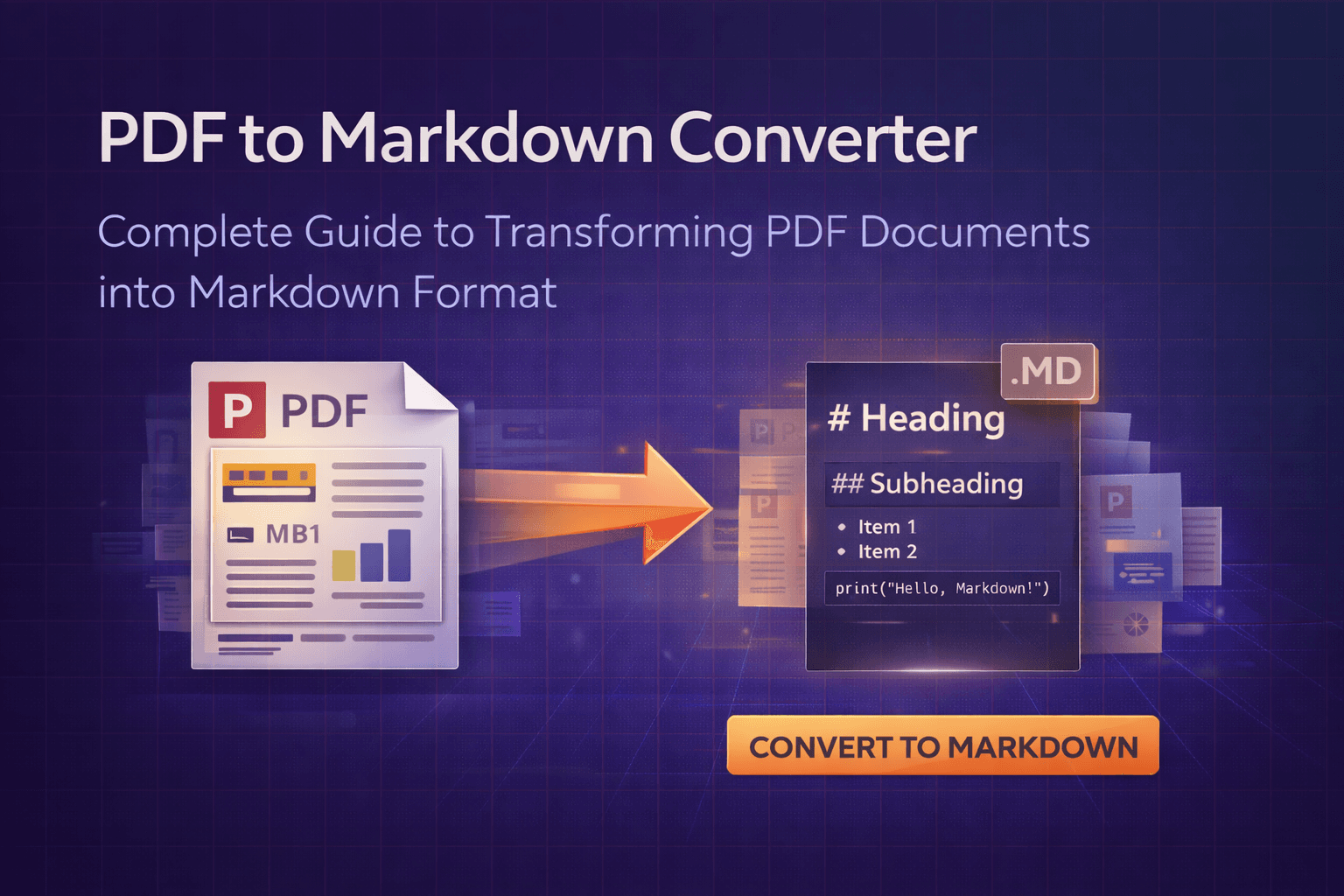
You've got a PDF document—maybe it's a technical manual, a research paper, or a formatted report. You need it in Markdown format for your documentation site, blog, or version control system. The problem? PDFs are notoriously difficult to convert while preserving structure and formatting. Copy-pasting doesn't work well, and manual conversion is tedious and error-prone.
The good news? You don't need complex scripts or expensive software. Modern online PDF to Markdown converters make transforming PDF documents into clean, editable Markdown as straightforward as uploading a file and clicking convert. This comprehensive guide will walk you through everything you need to know about converting PDFs to Markdown, from understanding why Markdown matters to handling edge cases and ensuring your documents convert accurately.
The Problem: Why Converting PDFs to Markdown Is Challenging
PDFs are designed to preserve visual formatting perfectly, which makes them great for sharing final documents but terrible for extracting editable content. Unlike Word documents or HTML files, PDFs store content in a way that prioritizes appearance over structure. This creates several challenges when trying to convert them to Markdown:
- Structure detection complexity: PDFs don't explicitly mark headings, lists, or emphasis—the tool must infer structure from font sizes, styles, and positioning
- Formatting preservation: Converting visual formatting (bold, italic, headings) to Markdown syntax requires intelligent text analysis
- Layout interpretation: PDFs use absolute positioning, making it difficult to determine document flow and hierarchy
- Text extraction accuracy: Poorly structured PDFs or scanned documents may have text extraction issues
- Complex layouts: Multi-column layouts, tables, and images require sophisticated processing to convert correctly
- Manual conversion inefficiency: Copy-pasting from PDFs loses formatting and structure, requiring extensive manual cleanup
These challenges are exactly why specialized PDF to Markdown conversion tools exist. They handle the complexity of structure detection, formatting preservation, and text extraction automatically, giving you clean Markdown output without hours of manual work.
Why This Problem Matters More Than You Think
You might think converting PDFs to Markdown is a niche need, but it's actually something thousands of professionals and content creators face regularly. Consider these real-world scenarios:
- Technical writers converting PDF documentation into Markdown for GitHub, GitLab, or documentation platforms like Docusaurus or MkDocs
- Bloggers and content creators converting PDF articles or reports into Markdown for Jekyll, Hugo, or other static site generators
- Developers extracting code documentation from PDFs into Markdown README files
- Researchers and academics converting research papers into Markdown for easier editing and collaboration
- Project managers converting PDF reports and specifications into Markdown for version-controlled project documentation
- Content teams migrating PDF content into content management systems that use Markdown
- Open source contributors converting PDF guides into Markdown for community documentation
- Students and educators converting PDF course materials into editable Markdown notes
The time wasted on manual conversion adds up quickly. What takes minutes with the right tool can take hours when you're manually reformatting, fixing structure, and cleaning up text. More importantly, manual conversion often leads to:
- Lost formatting and structure during copy-paste operations
- Inconsistent heading levels and emphasis markers
- Broken lists and code blocks
- Time-consuming manual cleanup and proofreading
- Errors that require multiple revision cycles
- Frustration and decreased productivity
That's why understanding how to convert PDFs to Markdown properly isn't just about convenience—it's about working efficiently in a world where Markdown has become the standard format for documentation, blogging, and version-controlled content.
The Solution: Modern Online PDF to Markdown Converters
The solution to PDF to Markdown conversion headaches is simpler than you might expect. Modern web-based PDF to Markdown converters handle all the technical complexity behind the scenes, giving you a clean interface to transform documents in minutes.
What makes these tools effective? They leverage advanced PDF parsing and text analysis technology that works entirely in your web browser. This means:
- No installation required: Works on any device with a modern browser
- Privacy-first processing: Files stay on your device, never uploaded to servers
- Intelligent structure detection: Automatically identifies headings, lists, emphasis, and document hierarchy
- Formatting preservation: Converts visual formatting (bold, italic, headings) to proper Markdown syntax
- Instant results: Convert PDFs to Markdown in seconds, not minutes
- Free to use: No subscriptions or hidden fees
- Cross-platform compatibility: Works on Windows, Mac, Linux, and mobile devices
- Page selection: Convert specific pages or page ranges, not just entire documents
The best part? You don't need to understand how PDF parsing or Markdown generation works technically. The tool handles text extraction, structure analysis, and Markdown formatting automatically. You just need to know how to use the interface—which is exactly what we'll cover next.
Our PDF to Markdown converter tool is built with these principles in mind. It's designed to be fast, secure, and straightforward—everything you need without the complexity you don't.
Step-by-Step Guide: How to Convert PDF to Markdown Using Our Tool
Ready to convert your PDF to Markdown? Follow these steps to transform PDF documents into clean, editable Markdown format quickly and easily. We'll walk through the entire process from upload to download.
Step 1: Access the PDF to Markdown Converter
Navigate to our PDF to Markdown converter page. You'll see a clean interface with a file upload area. No account creation or login required—you can start converting immediately.
The interface is designed to be intuitive, with clear instructions and visual feedback throughout the conversion process.
Step 2: Upload Your PDF File
Click the upload area or drag and drop your PDF file directly onto the page. The tool supports:
- Drag and drop functionality for quick file upload
- Files up to 25 MB (for optimal performance)
- Any PDF file, regardless of page count
- Text-based PDFs (scanned PDFs may require OCR preprocessing using our OCR tool)
- Password-protected PDFs (you'll need to unlock them first using our PDF editing tool)
Once uploaded, you'll see a preview of your PDF showing the total page count. This helps you plan which pages to convert if you don't need the entire document.
Step 3: Configure Conversion Options (Optional)
Before converting, you can configure several options to customize the output:
Page Selection
Choose which pages to convert:
- All pages: Convert the entire document (default)
- Page range: Specify a range like "1-10" or "5-15"
- Specific pages: Enter individual pages like "1,3,5" or "1-5,10,15-20"
Best for: When you only need specific sections, want to test conversion quality on a few pages first, or need to convert large documents in batches.
Formatting Options
Most tools offer options to control how formatting is preserved:
- Preserve formatting: Attempts to maintain headings, lists, and emphasis (recommended)
- Detect headings: Automatically identifies heading levels based on font size and style
- Plain text mode: Converts to plain text without Markdown formatting (rarely needed)
Pro tip: Enable "Preserve formatting" and "Detect headings" for best results. The tool will automatically convert bold text to **bold**, italic to *italic*, and detect heading levels.
Step 4: Preview Extracted Content (If Available)
Some tools provide a preview of the extracted text before conversion. This lets you:
- Verify that text extraction is working correctly
- Check if structure detection looks accurate
- Identify any potential issues before conversion
- Make adjustments to conversion settings if needed
If your PDF has complex layouts or unusual formatting, previewing helps catch issues early. For straightforward documents, you can usually skip this step.
Step 5: Click Convert and Wait for Processing
Once your settings are configured, click the "Convert to Markdown" or "Generate Markdown" button. The tool will:
- Extract text content from your PDF
- Analyze document structure (headings, lists, paragraphs)
- Detect formatting (bold, italic, emphasis)
- Convert structure and formatting to Markdown syntax
- Generate your Markdown file
Processing time depends on:
- Total page count of your PDF
- Document complexity (number of headings, lists, formatting)
- File size
- Your device's processing power
For typical conversions (10-50 pages), this usually takes just a few seconds. Larger documents (100+ pages) might take 30-60 seconds. You'll see a progress indicator during processing.
Step 6: Review Your Markdown Output
When processing completes, you'll see your converted Markdown. Most tools provide:
- A preview of the Markdown content
- Rendered preview showing how it will look
- Option to edit the Markdown before downloading
- Download button to save the .md file
Take a moment to review the output:
- Check that headings are properly formatted (using #, ##, ###)
- Verify lists are correctly converted (using - or *)
- Ensure emphasis (bold, italic) is preserved
- Look for any formatting issues that need manual cleanup
Most conversions are accurate, but complex layouts or unusual formatting may require minor adjustments. The preview helps you catch these before downloading.
Step 7: Download Your Markdown File
When you're satisfied with the conversion, click the download button to save your Markdown file. The file will typically be named something like "document.md" or "converted.md" by default, but you can rename it to something more descriptive.
Important: Since processing happens in your browser, your files never leave your device. Once you close the browser tab, all temporary data is cleared. Make sure to download your Markdown file before closing the page.
Your Markdown file is now ready to use! You can:
- Edit it in any text editor (VS Code, Notepad++, Sublime Text, etc.)
- Add it to your Git repository for version control
- Use it in documentation platforms (GitHub, GitLab, documentation sites)
- Convert it to other formats (HTML, PDF) using Markdown processors
- Publish it to your blog or content management system
That's it! You've successfully converted your PDF to Markdown. The entire process typically takes less than two minutes from start to finish.
Benefits of Using Online PDF to Markdown Converters
Why choose an online PDF to Markdown converter over manual methods or desktop software? Here are the key advantages:
1. Zero Installation Required
The biggest advantage is simplicity. You don't need to download, install, or update any software. Just open your browser and start converting. This is especially valuable when you're on a shared computer, work device with restricted permissions, or need to convert PDFs on the go. No Python scripts, no command-line tools, no complex setup—just a web page.
2. Privacy and Security
When you use a privacy-first PDF to Markdown converter that processes files locally in your browser, your documents never leave your device. This is crucial when working with:
- Confidential business documents
- Proprietary technical documentation
- Personal or sensitive content
- Any documents you don't want uploaded to external servers
Unlike cloud-based tools that upload your files to servers, client-side processing keeps everything on your machine where you control it. This is particularly important for organizations with strict data privacy requirements.
3. Intelligent Structure Detection
Quality PDF to Markdown converters don't just extract text—they analyze document structure and convert it intelligently. They automatically detect headings (and their levels), lists, emphasis, code blocks, and other formatting. This saves hours of manual formatting work compared to copy-pasting and manually adding Markdown syntax.
4. Cost-Effective Solution
Most online PDF to Markdown converters are completely free. Desktop PDF conversion software can cost $50-200, and subscription services charge monthly fees. For occasional or regular PDF to Markdown conversion, free online tools provide excellent value without any financial commitment.
5. Cross-Platform Compatibility
Whether you're on Windows, Mac, Linux, iOS, or Android, online PDF to Markdown converters work everywhere. Desktop software is often platform-specific, forcing you to buy separate versions or find workarounds. Browser-based tools eliminate this limitation entirely—if you have a browser, you can convert PDFs to Markdown.
6. Always Up-to-Date
Online tools are automatically updated by their developers. You always get the latest features, improved conversion accuracy, bug fixes, and security improvements without manually downloading updates or worrying about version compatibility. The tool you use today is better than the one from last month.
7. Speed and Efficiency
Modern browser-based PDF processing is surprisingly fast. You can convert PDFs to Markdown in seconds, compared to:
- Manual copy-paste methods (which lose formatting and require extensive cleanup)
- Command-line tools (which require setup and technical knowledge)
- Desktop software that requires launching and navigating complex interfaces
- Writing custom conversion scripts (which takes hours or days)
The streamlined interface of online tools means less time clicking through menus and more time getting work done.
8. Flexible Page Selection
Unlike some desktop tools that force you to convert entire documents, online converters often let you select specific pages or page ranges. This is perfect when you only need certain sections, want to test conversion quality first, or need to process large documents in manageable chunks.
9. Immediate Usability
The converted Markdown is ready to use immediately. You can edit it in any text editor, add it to version control, publish it to documentation sites, or convert it to other formats. There's no intermediate format or additional processing required—the output is standard Markdown that works everywhere.
Comparison: Online PDF to Markdown Converters vs. Other Tools
How do online PDF to Markdown converters stack up against alternatives? Let's break down the comparison:
Online Converters vs. Desktop Software
Desktop Software (Pandoc, Adobe Acrobat with plugins, etc.):
- ✅ More advanced conversion options and customization
- ✅ Works offline
- ✅ Better for batch processing large numbers of files
- ✅ Can handle very large files (500+ pages)
- ❌ Requires installation and updates
- ❌ Often expensive or requires technical setup (Pandoc)
- ❌ Platform-specific (Windows or Mac, rarely both)
- ❌ Steeper learning curve for command-line tools
- ❌ Takes up disk space
Online PDF to Markdown Converters:
- ✅ Free to use
- ✅ No installation required
- ✅ Works on any platform
- ✅ Always up-to-date
- ✅ Privacy-first (client-side processing)
- ✅ User-friendly interface
- ✅ Intelligent structure detection
- ❌ Requires internet connection (for initial page load)
- ❌ May struggle with extremely large files (500+ pages)
- ❌ Fewer advanced customization options
Verdict: For most users, online converters win on convenience, cost, and accessibility. Desktop software is better if you need advanced customization, work with very large files regularly, or require offline processing capabilities.
Online Converters vs. Cloud-Based Services
Cloud-Based Services (Zapier, API services, etc.):
- ✅ Can integrate with workflows and automation
- ✅ Can process files from cloud storage directly
- ✅ Often support batch processing
- ❌ Files uploaded to servers (privacy concern)
- ❌ Requires account creation and API keys
- ❌ Usually paid services or have usage limits
- ❌ Files may be retained on servers
- ❌ Slower processing (upload/download time)
- ❌ More complex setup and configuration
Client-Side Online Converters:
- ✅ No file uploads (privacy-first)
- ✅ No account required
- ✅ Faster processing (no upload/download)
- ✅ No storage limits
- ✅ Files never leave your device
- ✅ Free to use
- ✅ Simple, straightforward interface
- ❌ Can't access files from cloud storage directly
- ❌ No workflow automation
Verdict: For privacy-conscious users and one-off conversions, client-side online converters are superior. Cloud services are better if you need automation, batch processing, or integration with other tools and don't mind the privacy trade-off.
Online Converters vs. Manual Methods
Some people try to convert PDFs to Markdown manually using methods like:
- Copy-pasting text and manually adding Markdown syntax (extremely time-consuming, error-prone)
- Using PDF to text converters then manually formatting (loses structure, requires extensive cleanup)
- Writing custom Python scripts (requires programming knowledge, time investment)
- Using command-line tools like Pandoc (requires technical setup and learning curve)
Verdict: Online PDF to Markdown converters are faster, more accurate, and require zero technical knowledge compared to manual methods. They produce better results with proper structure detection and formatting preservation. There's no reason to use workarounds when proper tools are available for free.
Frequently Asked Questions About PDF to Markdown Conversion
How do I convert PDF to Markdown online for free?
You can convert PDF to Markdown online for free by using our PDF to Markdown converter tool. Simply upload your PDF file, configure conversion options if needed (like page selection), and click convert. The tool will extract text content, analyze document structure, and convert it into Markdown format automatically. You can then preview the Markdown and download it as a .md file. No account creation, payment, or software installation required.
Is it safe to convert PDF to Markdown online?
Yes, when using a privacy-first PDF to Markdown converter that processes files locally in your browser, your documents never leave your device. All conversion happens client-side using JavaScript, ensuring your sensitive documents remain secure and private. Unlike cloud-based tools that upload files to servers, client-side processing means your PDFs are processed entirely on your computer. Always look for tools that explicitly state they process files locally rather than uploading them.
What is Markdown format and why would I need it?
Markdown is a lightweight markup language that uses plain text formatting syntax. It's perfect for documentation, blog posts, README files, and version control systems like Git. Converting PDFs to Markdown makes content editable in any text editor, allows for easy collaboration and version tracking, works seamlessly with documentation platforms (GitHub, GitLab, Docusaurus, MkDocs), and can be converted to HTML, PDF, or other formats easily. Markdown has become the standard format for technical documentation and modern content creation.
Does PDF to Markdown conversion preserve formatting?
Yes, quality PDF to Markdown converters preserve basic formatting like headings (converted to #, ##, ###), lists (converted to - or *), paragraphs, and emphasis like bold (**text**) and italic (*text*). The tool detects document structure and converts it to appropriate Markdown syntax. However, complex layouts, images, tables, and advanced formatting may require manual adjustment. For best results, use PDFs with clear structure and standard formatting.
What is the maximum file size for PDF to Markdown conversion?
File size limits vary by tool, but most online PDF to Markdown converters support files up to 25-50 MB. For best performance, keep files under 25 MB and limit the total number of pages to under 200. Very large files (100+ MB) may cause browser performance issues or timeouts. If you need to convert very large PDFs, consider splitting them first using our PDF splitter tool or using desktop software designed for heavy-duty processing.
Can I convert specific pages from a PDF to Markdown?
Yes, many PDF to Markdown converters allow you to select specific pages or page ranges for conversion. You can specify page ranges like "1-10" or individual pages like "1,3,5" or combinations like "1-5,10,15-20". This is useful when you only need to convert certain sections of a large document, saving processing time and focusing on the content you need. It's also helpful for testing conversion quality on a few pages before converting the entire document.
Do I need to create an account to convert PDF to Markdown?
No, many free PDF to Markdown converter tools work without requiring account creation or registration. You can upload, convert, and download your Markdown files immediately without signing up. This makes the process faster and more private. Some tools offer optional accounts for saving conversion history or accessing premium features, but basic PDF to Markdown conversion is typically available without any registration.
Can I convert scanned PDFs to Markdown?
Converting scanned PDFs to Markdown requires OCR (Optical Character Recognition) technology because scanned PDFs contain images of text, not actual text. Some PDF to Markdown converters include OCR capabilities, but accuracy depends on scan quality. For best results with scanned documents, use a dedicated OCR tool first to convert the scanned PDF to a text-based PDF, then convert that to Markdown. Alternatively, look for PDF to Markdown converters that explicitly support OCR.
What can I do with Markdown files after conversion?
Markdown files are incredibly versatile. You can edit them in any text editor (VS Code, Notepad++, Sublime Text, Vim, etc.), use them in documentation systems like GitHub, GitLab, or documentation platforms (Docusaurus, MkDocs, Jekyll, Hugo), convert them to HTML, PDF, or other formats using Markdown processors, track changes in version control systems like Git, publish to blogs and content management systems that support Markdown, and collaborate easily since Markdown is plain text and human-readable.
Will the converted Markdown be perfect?
The quality of converted Markdown depends on the source PDF's structure and formatting. Well-structured PDFs with clear headings, lists, and standard formatting typically convert very accurately. Complex layouts, multi-column text, tables, and unusual formatting may require manual cleanup. Most conversions are 80-95% accurate and need only minor adjustments. The preview feature in conversion tools helps you identify and fix any issues before downloading.
Can I convert password-protected PDFs to Markdown?
Most online PDF to Markdown converters cannot process password-protected PDFs because they cannot access the content without the password. You'll need to remove password protection first using a PDF editing tool or the software that created the protection, then convert the unlocked file to Markdown. Some desktop PDF software can handle password-protected files if you provide the password.
How accurate is the heading detection?
Heading detection accuracy depends on how clearly headings are formatted in the source PDF. PDFs with consistent heading styles (larger fonts, bold text, specific positioning) convert very accurately. The tool analyzes font size, weight, and positioning to determine heading levels. However, if headings aren't clearly distinguished from body text in the PDF, the tool may miss them or assign incorrect levels. You can always manually adjust heading levels in the Markdown after conversion.
Can I convert PDFs to Markdown on mobile devices?
Yes, many online PDF to Markdown converters work on mobile browsers, though the experience may vary. Mobile devices have less processing power and memory than desktop computers, so very large conversions might be slower or fail. For best results on mobile, stick to smaller files (under 10 MB) and fewer total pages (under 50). The interface may also be optimized differently for touch screens, but core functionality should work.
Conclusion: Making PDF to Markdown Conversion Simple
Converting PDF documents to Markdown doesn't have to be complicated. With modern online PDF to Markdown converters, transforming documents into clean, editable Markdown format is straightforward, fast, and secure. Whether you're a technical writer migrating documentation, a blogger converting articles, a developer extracting code docs, or anyone who needs Markdown versions of PDF content, the right tool makes all the difference.
The key advantages of online PDF to Markdown converters—no installation, privacy-first processing, free access, intelligent structure detection, and cross-platform compatibility—make them the ideal solution for most conversion needs. While desktop software has its place for advanced customization and batch processing, simple conversions are perfectly handled by browser-based tools.
Remember these best practices:
- Use well-structured PDFs with clear headings and formatting for best results
- Preview the converted Markdown before downloading to catch any issues
- Keep files under 25 MB for optimal performance
- Use privacy-first tools that process files locally
- Select specific pages when you only need certain sections
- Be prepared to do minor manual cleanup for complex layouts
- Test conversion on a few pages first if working with large documents
Ready to convert your PDFs to Markdown? Try our free PDF to Markdown converter tool and experience how simple transforming documents can be. And if you need to make edits to your PDFs before converting, check out our PDF editing tool for adding text, images, and annotations. For scanned PDFs, use our OCR tool first to make them text-searchable. If you need to extract just the text without Markdown formatting, our PDF to text converter is perfect for that. And for large files, our PDF compression tool can help reduce file sizes before conversion.
PDF to Markdown conversion doesn't have to be a chore. With the right tools and approach, you can transform documents quickly and confidently, leaving more time for the content creation and documentation work that actually matters.
Related Articles
PDF to Text Converter
Learn how to extract plain text from PDF files online using free conversion tools.
How to Convert PDF to Word Online
Complete guide to converting PDF documents to Word format for easy editing.
How to Convert PDF to HTML Online
Transform PDF documents into HTML format for web publishing and editing.
How to Edit a PDF Online
Complete guide to editing PDF files online without installing software.